





Monitors for Colour-Critical Work: Professional Buying Guide 2026
Choose a display you can trust for editing, grading and delivery. Understand colour gamut, 10-bit output, HDR, calibration, panel technology and multi-monitor workflows before investing in your next screen.
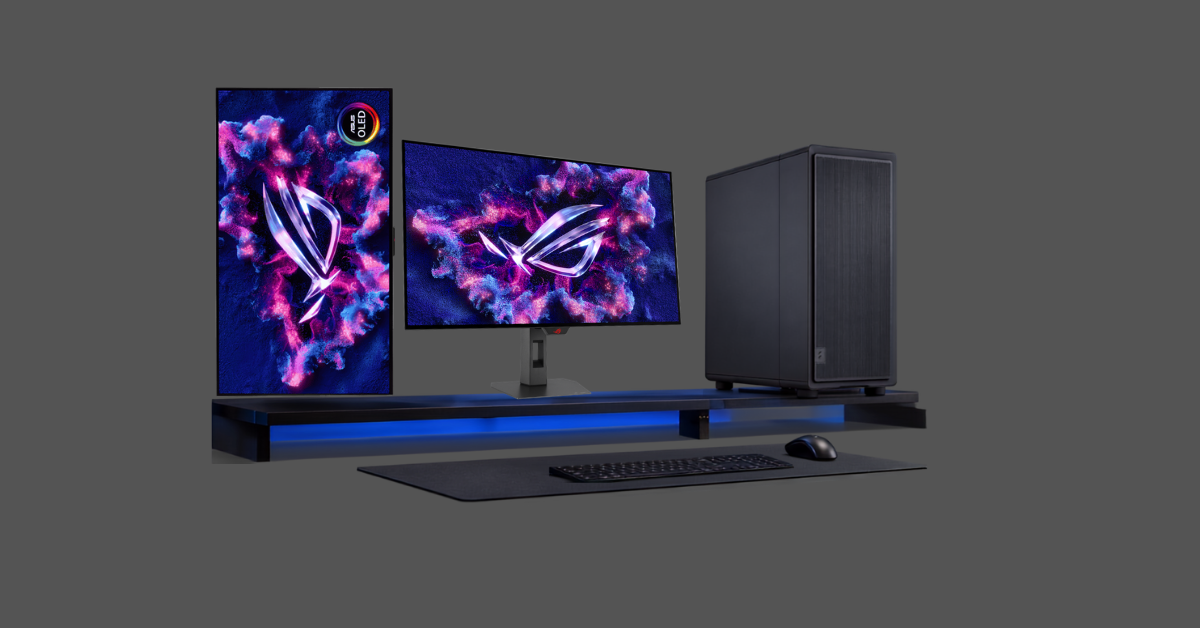
A powerful workstation can render effects quickly and play high-resolution footage smoothly, but the final creative decision still happens on a screen. If that screen is too blue, too bright, oversaturated or inconsistent, an editor can make technically incorrect choices while believing the picture is accurate.
That is why a professional editing monitor is about more than resolution. Gamut coverage, calibration, uniformity, bit depth, contrast, brightness behaviour and the signal path from the workstation all influence how reliably you can judge exposure, skin tones, shadows, highlights and saturation.
This guide explains those factors in practical terms and shows how to build a sensible monitoring setup for everyday Rec.709 editing, professional colour grading, HDR work and multi-display production.
Quick Answer
For serious SDR video editing, start with a factory-calibrated 27- or 32-inch 4K display that can accurately reproduce Rec.709, offers reliable calibration controls and provides stable viewing angles. For professional grading, prioritise hardware calibration, uniformity, true 10-bit processing and a controlled output path. HDR work raises the requirement significantly: sustained brightness, black level, local dimming or OLED behaviour and supported HDR standards become critical. A second monitor is excellent for timelines and tools, but keep one display clearly designated as the colour reference.
Why a Colour-Critical Monitor Matters
The screen is the point where technical data becomes a visual judgement. A better display does not make the workstation faster, but it can make your decisions more repeatable and more likely to translate correctly to televisions, phones, projectors and client displays.
White Balance
A neutral white point helps prevent you from compensating for a display that is naturally too warm or too cool.
Skin Tones
Accurate hue and saturation make it easier to judge faces consistently instead of chasing colour errors created by the monitor.
Shadow Detail
Stable blacks and controlled contrast help reveal whether dark areas are genuinely crushed or only look that way on the display.
Highlight Detail
Brightness behaviour affects how confidently you can judge bright windows, specular highlights and HDR peaks.
Saturation
Wide-gamut screens need correct colour management; otherwise vivid colours can appear stronger than the delivery standard intends.
Consistency
A calibrated reference makes it easier to return to a project later and see the same visual target rather than a drifting display.
Rec.709, DCI-P3, Delta E and 10-Bit Colour Explained
Monitor specifications can look impressive without telling you whether the display is suitable for your delivery format. Start with the colour space and calibration target you actually use.
| Specification | What It Means | Why It Matters | Practical Advice |
|---|---|---|---|
| Rec.709 | Standard colour space used widely for HDTV and SDR video | Core target for mainstream broadcast, web and corporate video | Prioritise accurate Rec.709 modes for normal SDR editing |
| DCI-P3 / P3 | Wider gamut than Rec.709 | Useful for cinema, HDR and wide-gamut creative work | Coverage alone is not enough; calibration and colour management still matter |
| Delta E | A measurement of colour difference | Lower values generally indicate closer colour matching | Look for strong factory calibration and the ability to recalibrate later |
| 10-bit colour | More tonal steps than 8-bit output | Reduces visible banding in gradients and delicate colour work | Check the complete GPU, cable, application and display path, not the panel alone |
| Uniformity | How consistent brightness and colour are across the screen | Important when judging the same image in different screen areas | Professional displays often apply compensation to improve consistency |
| Hardware calibration | Calibration data is applied inside the monitor | Provides a more controlled result than only altering the GPU output | Prefer it for regular professional grading and long-term consistency |
IPS, OLED or Mini LED?
There is no single perfect panel technology. The best choice depends on whether you prioritise SDR consistency, deep blacks, HDR brightness, long static sessions or budget.
IPS / Professional LCD
Excellent for SDR and controlled colour work
High-quality IPS remains popular because of stable viewing angles, predictable desktop behaviour and a wide choice of calibrated professional models.
- Strong choice for Rec.709 editing
- Generally comfortable for long static desktop sessions
- Available with hardware calibration and uniformity control
- Black levels are usually weaker than OLED
OLED / QD-OLED
Excellent contrast for modern grading
OLED can produce extremely deep blacks and strong pixel-level contrast. New professional QD-OLED displays also combine wide gamut with fast response and advanced calibration features.
- Outstanding black level and contrast
- Excellent for dark-room grading
- Wide-gamut professional models are now available
- Static interface use and panel-care behaviour should be considered
Mini LED LCD
Strong option for bright HDR work
Mini LED displays use many local dimming zones to increase contrast and brightness while retaining LCD characteristics. They can be useful where sustained HDR brightness is important.
- High peak and sustained brightness can be available
- Useful for HDR monitoring
- No OLED-style pixel ageing behaviour
- Local dimming can create blooming around bright objects
SDR and HDR Monitoring Are Not the Same Purchase
A display that is excellent for Rec.709 SDR editing may not be suitable for mastering HDR. HDR requires much more control over peak brightness, black level, contrast and tone behaviour.
SDR / Rec.709
Accuracy and consistency first
For YouTube, corporate, broadcast SDR, education, wedding and general client work, a well-calibrated Rec.709 display is usually more useful than chasing extreme brightness.
- Accurate Rec.709 mode
- Stable gamma and white point
- Good uniformity
- Regular calibration
HDR / Wide Gamut
Brightness, blacks and metadata matter
HDR grading demands a display capable of showing the required luminance range with predictable tone mapping and suitable support for standards such as PQ or HLG.
- High-quality HDR behaviour
- Wide colour gamut
- Controlled black level
- Verify the display against the intended mastering target
Colour-Critical Monitors to Know in 2026
These are useful examples of how the professional market is divided. They are not interchangeable: each model targets a different combination of colour, calibration, HDR, connectivity and budget.
| Monitor | Panel / Resolution | Key Colour Features | Best Fit |
|---|---|---|---|
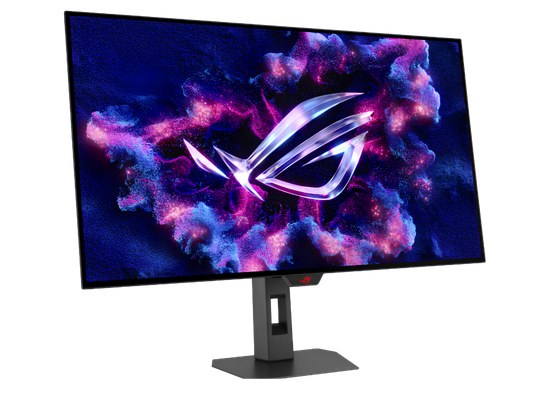
| ASUS ProArt OLED PA27USD | 26.5-inch 4K QD-OLED | 99% DCI-P3, factory calibrated to Delta E < 1, hardware calibration support, 12G-SDI | Modern professional video editing and grading |
| ASUS ProArt OLED PA32USD | 31.5-inch 4K QD-OLED | 99% DCI-P3, Delta E < 1, self/auto calibration, dual 12G-SDI, HDR formats | High-end 4K studio and grading workflows |
| EIZO ColorEdge CG2700X | 27-inch 4K LCD | Built-in calibration sensor, HDR gamma support, professional colour-management features | Colour-managed editing, photography and professional grading |
| BenQ SW272U | 27-inch 4K LCD | 99% Adobe RGB, hardware calibration, Calman and ColourSpace support | Photo/video creators needing reliable hardware calibration |
| Apple Pro Display XDR | 32-inch 6K LCD | P3 wide colour, true 10-bit colour, up to 1600-nit peak brightness | High-resolution Mac-based finishing and HDR review |
How to Build a Reliable Calibration Workflow
Factory calibration is an excellent starting point, but a professional display should also be checked over time. Monitors change as they age, room lighting changes and different delivery standards require different targets.
- Control the room: avoid strong coloured lighting and direct reflections on the screen.
- Warm up the display: allow the monitor to reach stable operating behaviour before critical work.
- Use the correct target: calibrate for the delivery standard rather than one universal setting.
- Prefer hardware calibration: when supported, write calibration adjustments into the monitor rather than only the GPU LUT.
- Recheck regularly: professional grading environments should use a repeatable calibration schedule.
Single, Dual or Three-Monitor Editing Setup?
More screens improve workspace, but they should have clearly defined jobs. Trying to make every display the colour reference often creates unnecessary complexity.
Single Monitor
Good for compact desks and straightforward editing. Choose enough resolution and screen size to keep the viewer, timeline and tools usable together.
Dual Monitor
A very practical setup: one screen can hold the timeline and controls while the better-calibrated display handles the main image.
Three Displays
High-end suites may use two desktop displays plus a dedicated clean-feed reference monitor for client review or grading.
GPU Output or Dedicated Video I/O?
Normal DisplayPort and HDMI outputs from the graphics card are excellent for desktop monitors. For colour-critical finishing, many professional workflows add dedicated video I/O so the grading application can send a clean video signal directly to a reference display.
GPU Display Output
Convenient for editing and general grading
Use the NVIDIA RTX outputs for the user interface, timelines, scopes and general creative monitors. Correct operating-system colour management and monitor calibration remain important.
Dedicated Video Output
Cleaner path for professional monitoring
DeckLink, UltraStudio or similar professional I/O can provide a dedicated clean feed from supported editing and grading software to a reference monitor, separating the video output from the normal desktop.
Which Monitor Level Fits Your Workflow?
Buy for the type of judgement you need to make, not simply the largest panel or highest refresh rate.
| Workflow | Sensible Monitor Level | Priority Features | Typical Setup |
|---|---|---|---|
| YouTube / Corporate / Education | 27-inch 4K calibrated creator display | Rec.709 accuracy, good uniformity, 10-bit support | Single or dual display |
| Professional Editing Studio | 27-32 inch 4K professional monitor | Hardware calibration, wider gamut, reliable connectivity | Dual monitor with one colour-primary screen |
| Colour Grading / Commercial Finishing | Professional calibrated reference-class display | Uniformity, hardware calibration, clean video input, stable blacks | UI displays plus dedicated reference monitor |
| HDR Finishing | HDR-capable professional display | High brightness, wide gamut, deep blacks, PQ/HLG support | Dedicated HDR reference path |
| Photography + Video | Wide-gamut 4K creator monitor | Adobe RGB/P3 coverage, hardware calibration, print/video presets | Single accurate display or dual workspace |
Eight Checks for Choosing a Colour-Critical Monitor
Use this list to separate meaningful professional features from specifications that look impressive but may not improve your actual grading work.
Define the Delivery Standard
Rec.709 SDR, P3, HDR10, HLG and cinema work do not require exactly the same display capability.
Check Gamut Coverage
Confirm the monitor can reproduce the colour space you actually need, not only a large percentage number from another gamut.
Look Beyond Factory Calibration
Ask whether the monitor supports repeatable hardware calibration and the tools used in your studio.
Confirm the 10-Bit Path
Check the GPU, application, operating system, cable and display input together rather than relying on one specification.
Evaluate HDR Properly
Peak brightness alone does not describe HDR quality; sustained brightness, black level and tone behaviour also matter.
Check Connectivity
DisplayPort and HDMI suit desktop use; SDI can be valuable for professional reference-monitoring chains.
Plan the Desk and Room
Screen size, viewing distance, monitor hood, ambient lighting and reflections all affect practical accuracy.
Decide Which Screen Is the Reference
In a multi-monitor suite, designate one properly calibrated display for colour decisions and use the others for interface space.
Build a Colour-Accurate Editing Suite Around Your Cortex Workstation
Pair a powerful Cortex Studio editing PC with a properly calibrated display, suitable video I/O and controlled room lighting so the image you approve is the image your audience receives.
Frequently Asked Questions
What is the best monitor type for colour grading?
The best type depends on the delivery target. A high-quality calibrated IPS monitor can be excellent for Rec.709 SDR work, while OLED offers very deep blacks and strong contrast. HDR mastering may require a display with substantially higher brightness and controlled HDR behaviour.
Do I need a 4K monitor for 4K video editing?
You can edit 4K footage on a lower-resolution screen, but a 4K monitor gives more workspace and allows you to inspect UHD material more directly. Colour accuracy is still more important than resolution alone for grading decisions.
Is 100% sRGB enough for video editing?
It can be adequate for basic web-focused work, but professional video editors should look specifically at Rec.709 accuracy and the monitor’s calibration behaviour. Wide-gamut work may require P3 or other colour spaces.
Do I need a 10-bit monitor?
For serious grading, 10-bit output is desirable because it provides finer tonal steps and can reduce visible banding. The complete signal path must support 10-bit, not only the panel specification.
Is OLED better than IPS for colour grading?
OLED usually provides much deeper blacks and stronger native contrast, which is valuable in dark-room grading. High-quality IPS displays remain very capable for SDR work and may be preferable where long static desktop sessions, predictable brightness and established calibration workflows are priorities.
How often should a professional monitor be calibrated?
There is no universal interval because usage, panel technology and facility requirements differ. The important point is to use a repeatable schedule and verify the display often enough that drift is detected before it affects paid work.
Can I use two different monitor models in one editing setup?
Yes. Many editors use one colour-critical display and a second, less expensive screen for bins, timelines, scopes and communication. The key is to know which display is the trusted colour reference.
Do I need a dedicated output card for colour grading?
Not for every workflow, but professional finishing suites often use dedicated video I/O to send a clean signal from the grading application to a reference monitor. This separates the video feed from the normal desktop display path.
Is higher refresh rate important for video editing?
A higher refresh rate can make the desktop feel smoother, but it is not a substitute for accurate colour, calibration and support for the frame rates you deliver. For colour-critical work, image accuracy should remain the priority.
Can a gaming monitor be calibrated for professional grading?
Some gaming monitors can be calibrated well enough for general creative work, but they may lack uniformity compensation, hardware calibration, professional colour presets or predictable HDR behaviour. For paid colour-critical work, a purpose-built creator or reference display is usually safer.
Final Verdict
For most professional editors delivering SDR content, a calibrated 27- or 32-inch 4K display with reliable Rec.709 performance, good uniformity and a repeatable calibration workflow offers the best balance of accuracy and cost. It gives enough workspace for modern NLEs while keeping colour decisions under control.
Move into higher-end professional displays when grading becomes a primary part of the business, when wide-gamut work is routine or when clients expect a controlled reference image. OLED and QD-OLED now provide extremely strong contrast and wide gamut, while specialist LCD displays remain valuable for consistent SDR and HDR workflows with built-in calibration tools.
For HDR mastering, treat the display as part of a complete monitoring chain. The workstation, video I/O, calibration system, room lighting and monitor all need to support the same target. A trustworthy image is created by the whole system, not by one headline monitor specification.


