





NVIDIA Graphics for Video Editing: RTX Buying Guide 2026
Compare NVIDIA RTX graphics cards for smooth playback, faster exports, colour grading, motion graphics, VFX and demanding 4K or 8K production.
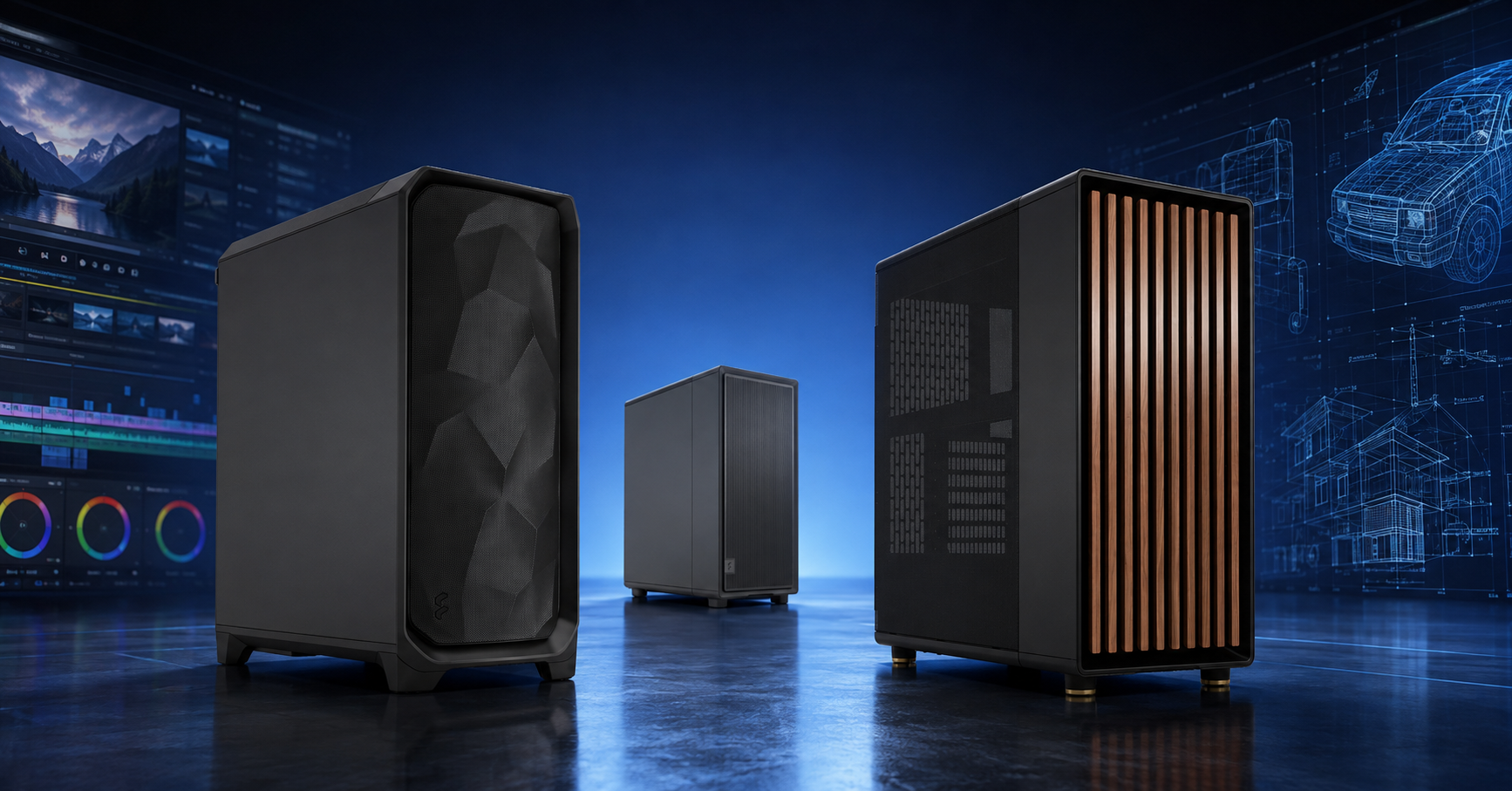
The graphics card has become one of the most important parts of a modern video editing workstation. Supported effects, colour processing, scaling, AI tools, encoding and decoding can all use the GPU, helping the system maintain smoother playback and finish exports more quickly.
The right card still depends on the project. A creator editing normal 4K YouTube videos does not need the same GPU as a colourist working with noise reduction, a motion designer building large After Effects compositions or a finishing artist handling 8K RAW footage.
This guide explains the current NVIDIA RTX options in simple terms. It focuses on VRAM, GPU processing, NVENC, Studio Drivers and the complete workstation balance, so you can buy enough performance without paying for power your workflow will not use.
Quick Answer
Choose an RTX 5060 Ti 16GB for everyday 4K editing and creator work. Move to an RTX 5070 Ti 16GB for heavier timelines, multicamera projects and regular professional production. Choose an RTX 5080 16GB for 8K, RAW footage, detailed colour grading, motion graphics and VFX. The RTX 5090 32GB is the no-compromise option for the largest projects, advanced effects, AI-assisted tools and maximum GPU headroom.
What Does the GPU Do in Video Editing?
The CPU remains important, but modern editing applications send an increasing amount of creative work to the graphics card.
Playback and Effects
GPU acceleration helps with supported effects, scaling, colour conversion, compositing and timeline playback. A stronger card gives complex projects more room before previews begin to slow down.
Encoding and Decoding
NVIDIA NVENC and NVDEC provide dedicated hardware for supported video formats. This can improve playback, recording, transcoding and exports while leaving more CPU resources available.
AI and Advanced Tools
Noise reduction, object tracking, reframing, masking, upscaling and other AI-assisted features can place heavy demands on the GPU and its available video memory.
NVIDIA RTX Video Editing GPUs Compared
The recommendations below are practical workflow targets. Actual performance changes with the codec, resolution, effects, software version and the rest of the workstation.
| Graphics Card | VRAM | Best Use | Practical Editing Level | Main Reason to Upgrade |
|---|---|---|---|---|
| RTX 5060 Ti | Choose 16GB | YouTube, social, corporate and general creator work | Everyday 4K editing | Best Entry Choice |
| RTX 5070 | 12GB GDDR7 | 4K editing with more effects and stronger GPU performance | Advanced enthusiast or lighter professional use | More processing power than entry-level cards |
| RTX 5070 Ti | 16GB GDDR7 | Multicamera work, regular Premiere Pro and Resolve production | Professional 4K and lighter 8K | Best Balance |
| RTX 5080 | 16GB GDDR7 | 8K, RAW media, colour grading, motion graphics and 3D | High-end studio workflow | High-End Power |
| RTX 5090 | 32GB GDDR7 | Large VFX projects, intensive grading, AI and maximum headroom | No-compromise professional production | Maximum VRAM |
Which NVIDIA RTX Card Fits Your Workflow?
Buy for the largest project you complete regularly. Occasional difficult work can use proxies or optimised media, but daily production needs enough GPU headroom to remain efficient.
RTX 5060 Ti 16GB
Strong starting point
A sensible choice for YouTube, social media, education, interviews, product videos and normal 4K editing. Select the 16GB version because video work benefits from the extra memory.
- General 4K timelines
- Light colour correction
- Streaming and recording
- Photoshop and Lightroom alongside editing
RTX 5070 Ti 16GB
Best all-round recommendation
The strongest general recommendation for busy editors. It adds more GPU performance while retaining 16GB of VRAM, making it well suited to multicamera work, layered 4K projects and regular studio production.
- Heavy 4K editing
- Multicamera timelines
- Premiere Pro and Resolve production
- Moderate motion graphics and effects
RTX 5080 16GB
High-end creator performance
Designed for demanding creative professionals who use high-resolution footage, node-heavy colour grades, motion graphics, 3D tools and several creative applications during the same session.
- 8K and RAW projects
- Advanced colour grading
- After Effects and motion design
- GPU rendering and AI-assisted tools
RTX 5090 32GB
Maximum graphics headroom
The 32GB frame buffer is the main advantage for large compositions, detailed VFX, high-resolution textures, demanding AI features and projects that exceed the comfortable limits of 16GB cards.
- Large 8K finishing projects
- Advanced VFX and compositing
- Heavy Resolve noise reduction
- Maximum long-term GPU headroom
How Much GPU VRAM Do Video Editors Need?
Adobe currently recommends 8GB of GPU memory for Premiere on Windows, but this should be treated as a general recommended level rather than the ideal capacity for every professional workflow.
- 8GB: suitable for lighter HD and 4K work, but offers limited headroom for demanding effects.
- 12GB: a useful level for stronger 4K editing and moderate creative workloads.
- 16GB: the practical target for professional 4K, lighter 8K, grading, multicamera and motion graphics.
- 24GB to 32GB: valuable for complex VFX, large textures, advanced AI, demanding Resolve projects and high-resolution finishing.
- Check the whole project: resolution alone does not decide VRAM use. Effects, codecs, nodes, frame size and application choice all matter.
Why NVENC, NVDEC and Studio Drivers Matter
NVIDIA RTX cards contain dedicated video engines alongside their general GPU cores. Supported applications can use these blocks to accelerate media work efficiently.
NVENC
The dedicated encoder handles supported H.264, HEVC and AV1 exports or recording tasks without relying entirely on the CPU. Higher-end RTX cards can include additional encoder engines.
NVDEC
The dedicated decoder helps supported compressed media play back more efficiently. Blackwell also expands hardware support for professional high-bit-depth and 4:2:2 formats.
Studio Drivers
Use NVIDIA Studio Drivers on an editing workstation. Adobe recommends current Studio Drivers for supported NVIDIA desktop and notebook GPUs.
NVIDIA GPU Recommendations by Editing Software
These are sensible starting points for complete workstations. Very large projects may require a higher tier regardless of the application name.
| Software or Workflow | Sensible Starting GPU | Recommended Professional Level | Upgrade When |
|---|---|---|---|
| Adobe Premiere Pro | RTX 5060 Ti 16GB | RTX 5070 Ti 16GB | Heavy effects, multicamera, 8K or faster export turnaround |
| DaVinci Resolve | RTX 5070 12GB | RTX 5080 16GB | Noise reduction, Fusion, complex grades, RAW or high-resolution media |
| Adobe After Effects | RTX 5060 Ti 16GB | RTX 5080 16GB | Large compositions, 3D layers, GPU effects and several apps open together |
| VFX and 3D Integration | RTX 5070 Ti 16GB | RTX 5090 32GB | Large textures, GPU rendering, simulations and complex compositing |
| Streaming and Recording | RTX 5060 Ti 16GB | RTX 5070 Ti 16GB | Recording, streaming, editing and other creative tasks run together |
GeForce RTX or NVIDIA RTX PRO?
Most video editors receive better value from GeForce RTX. RTX PRO becomes relevant when the workflow needs specialist professional features rather than only faster editing performance.
GeForce RTX
The normal editing choice
Choose GeForce RTX for Premiere Pro, Resolve, After Effects, streaming, content creation, colour grading and general VFX when consumer RTX memory capacity meets the project.
- Strong CUDA and creative performance
- NVIDIA Studio Driver support
- NVENC and NVDEC media engines
- Better performance per pound for most editors
NVIDIA RTX PRO
For exceptional requirements
Consider RTX PRO when projects require very large ECC memory capacities, enterprise management, certified specialist applications or workloads that cannot fit within a 32GB GeForce card.
- Large professional memory capacities
- ECC memory on supported models
- Enterprise and specialist application features
- Usually unnecessary for normal editing alone
Balance the Graphics Card with the Full Workstation
An expensive GPU will not fix slow storage, insufficient memory, weak cooling or a processor that cannot keep the workflow moving.
Processor
The CPU handles application logic, many effects, decoding tasks and export work. Pair higher RTX tiers with a modern Core Ultra 7/9 or Ryzen 9-class processor.
System Memory
Use 32GB for normal 4K work, 48GB to 64GB for professional production and 96GB or more for large After Effects, 8K and VFX projects.
Storage
Fast NVMe storage reduces media and cache bottlenecks. Larger workflows benefit from separate drives for Windows and apps, active projects, cache and archive storage.
Power Supply
High-end RTX cards need a suitable high-quality power supply and correct cabling. The complete system specification determines the final wattage requirement.
Cooling and Airflow
Editing, rendering and encoding can keep the GPU under load for long periods. A well-cooled case maintains performance and reduces distracting fan noise.
Display Output
Confirm the card supports the number, resolution, refresh rate and connection type required by your editing, client and colour-reference displays.
Which Cortex Studio Workstation Matches Each RTX Tier?
The current Cortex Studio range makes the GPU decision easier by pairing each RTX tier with suitable memory, storage, cooling and processor performance.
| Cortex Studio Model | NVIDIA Graphics | System Memory | Best For |
|---|---|---|---|
| Cortex Studio | RTX 5060 Ti | 32GB DDR5 | Daily 4K editing, YouTube and social content |
| Cortex Studio Pro | RTX 5070 Ti 16GB | 48GB DDR5 | Production studios, multicamera and heavier professional editing |
| Cortex Studio Ultra | RTX 5080 16GB | 64GB DDR5 | 8K, RAW workflows, detailed grading and motion design |
| Cortex Studio Ultimate | RTX 5090 32GB | 96GB DDR5 | The heaviest VFX, finishing, AI and no-compromise studio projects |
Six Checks for Choosing an Editing GPU
Use this checklist to avoid buying a card that is either too limited or unnecessarily expensive.
List Your Main Software
Start with Premiere Pro, Resolve, After Effects, Blender or the applications you use every week.
Check the Hardest Regular Project
Buy for your normal maximum resolution, codec, camera count, effects and colour workload.
Choose Enough VRAM
Aim for 16GB for serious professional work and 32GB when complex projects regularly exceed normal limits.
Use Studio Drivers
Install the current NVIDIA Studio Driver for a workstation focused on editing and creative reliability.
Confirm Power and Case Space
Check power-supply quality, power connectors, card dimensions, airflow and expansion-slot clearance.
Balance the Rest of the PC
Match the GPU with sufficient processor performance, RAM, NVMe storage and sustained cooling.
Why Choose a Complete Cortex Studio Workstation?
A workstation should be designed as one balanced system rather than a powerful graphics card placed into an unsuitable desktop.
RTX graphics are paired with appropriate processors, memory, NVMe storage and power delivery.
Systems are prepared for professional creative applications rather than gaming performance alone.
Each workstation is assembled, stress tested and checked before dispatch.
Choose the Right RTX Video Editing Workstation
Compare Cortex Studio systems for everyday 4K editing, professional multicamera production, 8K RAW footage, colour grading, motion graphics, VFX and maximum studio performance.
Frequently Asked Questions
What is the best NVIDIA GPU for 4K video editing?
The RTX 5060 Ti 16GB is a strong starting point for ordinary 4K editing. The RTX 5070 Ti 16GB is the better all-round choice for professional timelines, multicamera projects and heavier effects.
Is 8GB of VRAM enough for video editing?
It can be enough for lighter HD and 4K work, and Adobe recommends 8GB GPU memory for Premiere. However, 12GB to 16GB provides more useful headroom for professional effects, grading and high-resolution projects.
Should I choose the 8GB or 16GB RTX 5060 Ti?
Choose the 16GB model for video editing. The larger frame buffer is more useful for 4K projects, creative applications and future software features.
Is the RTX 5070 Ti good for Premiere Pro?
Yes. Its 16GB VRAM, Blackwell architecture and dual ninth-generation NVENC engines make it a strong professional balance for Premiere Pro, multicamera editing and regular export work.
Is the RTX 5080 worth it for DaVinci Resolve?
It is a sensible high-end choice for detailed grades, noise reduction, Fusion, RAW footage and 8K work. Lighter Resolve projects may not need this level of graphics performance.
Who needs an RTX 5090 for editing?
The RTX 5090 is aimed at users who can benefit from 32GB VRAM and maximum GPU performance, including advanced VFX, large 8K projects, demanding AI tools, complex colour work and heavy GPU rendering.
What is NVIDIA NVENC?
NVENC is dedicated video-encoding hardware built into NVIDIA GPUs. Supported applications can use it for faster recording, streaming, transcoding and exports without placing the entire task on the CPU.
Should video editors use Studio Drivers or Game Ready Drivers?
Use NVIDIA Studio Drivers when the PC is mainly used for editing, design and creative applications. Adobe recommends current Studio Drivers for supported NVIDIA GPUs.
Do video editors need NVIDIA RTX PRO graphics?
Most editors do not. GeForce RTX usually offers better value. RTX PRO is more relevant when you need very large ECC memory, enterprise features, specialist certification or workloads that exceed GeForce memory limits.
Final Verdict
The RTX 5060 Ti 16GB is the sensible entry point for everyday 4K editing. The RTX 5070 Ti 16GB offers the best balance for many professional editors, while the RTX 5080 16GB is better suited to 8K, RAW media, colour grading and motion graphics.
Choose the RTX 5090 32GB only when large VFX, advanced grading, AI features or high-resolution finishing can genuinely use its extra memory and performance. Whichever card you select, combine it with enough system memory, fast NVMe storage, a capable processor, suitable power delivery and quiet sustained cooling.


