





Storage for Your Pro Video PC: NVMe, Cache & Archive Guide 2026
Learn how to organise system files, active footage, media cache, exports and long-term archives, then match the right storage capacity to your 4K, 8K or RAW editing workflow.
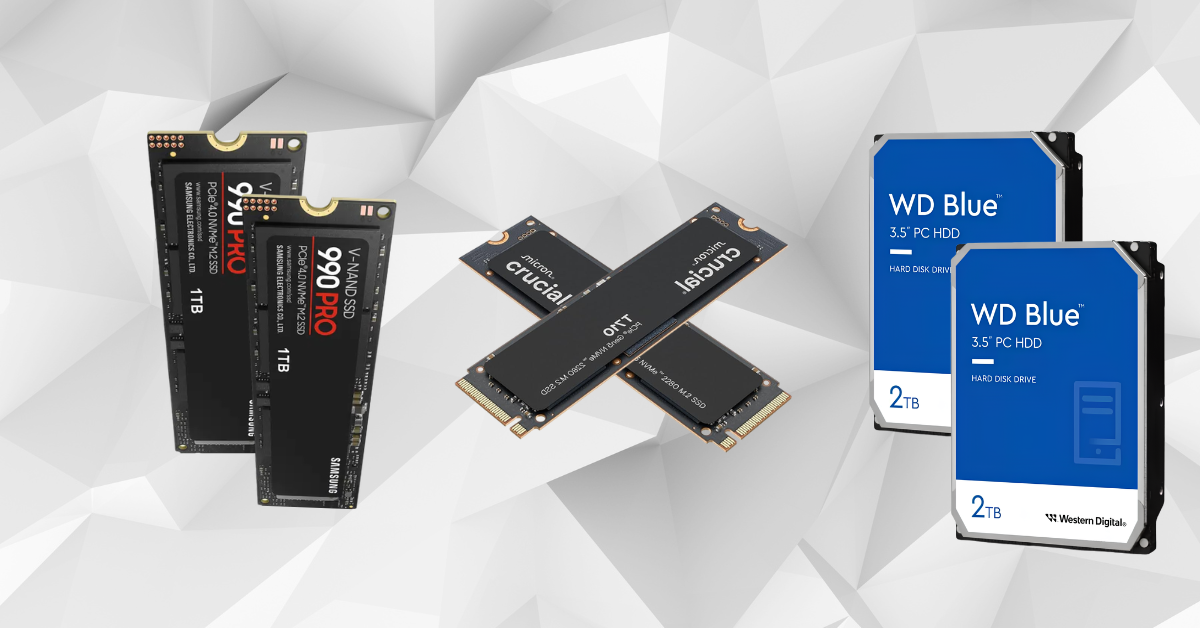
Storage affects far more than the time it takes to copy files. Every editing session continuously reads camera media, writes cache files, creates previews, loads graphics, saves project versions and produces exports. When one slow or nearly full drive is expected to handle all of those jobs, even a powerful processor and graphics card can feel less responsive than they should.
The best setup is not simply the fastest single SSD available. It is a sensible arrangement of drives, each with a clear role. A fast system drive keeps Windows and applications responsive, a dedicated project drive streams active footage, a cache drive handles temporary files, and separate archive storage protects completed work without filling expensive internal NVMe space.
This guide explains those roles in straightforward terms and connects them to the current Cortex Studio range, helping editors buy enough speed and capacity without paying for storage that does not improve their real workflow.
Quick Answer
Use a fast internal NVMe SSD for Windows, applications and active work. For professional editing, a two-drive layout is the practical starting point: one drive for the system and applications, then a second fast NVMe for project media and cache. Heavier 8K, RAW, multicamera and VFX workflows benefit from three working drives so the system, cache and active media are separated. Keep completed projects on independent archive storage and maintain a second backup copy. A 2TB Cortex Studio configuration suits daily 4K work, while 4TB and 6TB configurations provide more local headroom for high-resolution productions.
Why Storage Matters in Video Editing
Your workstation must move several types of data at the same time. Smooth performance depends on sustained access, low latency, available capacity and a layout that prevents one drive becoming a bottleneck.
Timeline Playback
The storage system must deliver every video and audio stream quickly enough for real-time playback. Multicamera sequences multiply the number of files being read simultaneously.
Media Cache
Premiere Pro, Resolve and other applications create waveform, conform, optimised media, render-cache and preview files that are accessed repeatedly during an edit.
High-Bitrate Footage
RAW, intermediate and finishing codecs can create much larger data streams than delivery formats. Resolution alone does not reveal how demanding the footage will be.
Project Reliability
Autosaves, project versions, graphics and audio assets need organised locations. Clear folder structures make relinking, collaboration and recovery much easier.
Exports and Deliverables
Writing an export to a different drive from the source media can reduce competition for the same storage device during long encoding jobs.
Archive and Backup
Fast working storage is not permanent protection. Finished projects need separate archive media and at least one additional copy stored independently.
The Best Storage Layout for a Video Editing PC
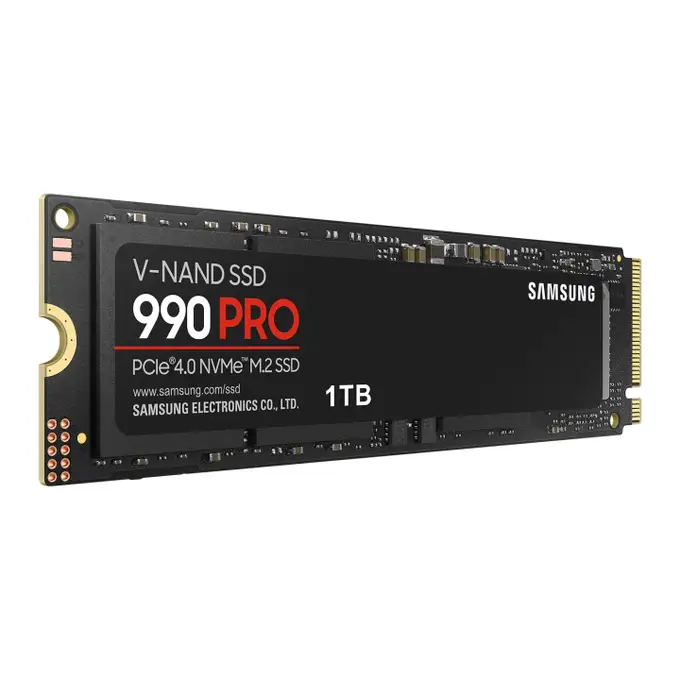
A single large NVMe drive can run an editing application, but separating workloads creates more consistent performance and makes projects easier to manage.
- Drive 1 — System and applications: Windows, Premiere Pro, Resolve, After Effects, plugins and everyday documents.
- Drive 2 — Active projects and media: camera originals, audio, graphics and current project folders.
- Drive 3 — Cache and scratch: media cache, render cache, previews, proxies, optimised media and temporary files.
- Archive storage: completed jobs, camera masters and deliverables kept away from the active workstation.
One, Two or Three Working Drives?
The correct number of internal drives depends on project size, media bitrate, the amount of cache generated and how many jobs remain active at once.
One NVMe Drive
Best for light and portable workflows
One good NVMe can handle short-form and lighter 4K work when projects are organised carefully and completed media is moved off the workstation regularly.
- Lowest cost and simplest management
- System, cache and media share one device
- Capacity can disappear quickly
- Use external storage for completed projects
Two NVMe Drives
Best balance for most 4K editors
Keep Windows and applications on the primary drive, then place active media and cache on a second high-capacity NVMe. This reduces clutter and gives projects a dedicated working area.
- Cleaner system and project separation
- Excellent for daily professional 4K work
- Easier to reinstall or upgrade Windows
- Add archive storage outside the PC
Three NVMe Drives
Best for 8K, RAW, VFX and heavy cache
Separate the system, active media and cache. This is the most flexible local layout for large productions, intensive Resolve cache, proxies, motion graphics and frequent exports.
- Dedicated cache and scratch performance
- Large active-media working set
- Better organisation across several jobs
- Requires enough motherboard M.2 capacity
Local NVMe plus NAS
Best for shared projects and central storage
Keep cache local for responsiveness while project media and archives live on a properly designed shared-storage system. Network speed, RAID layout and backup strategy must match the media.
- Centralised files for several editors
- Local cache avoids unnecessary network traffic
- 10GbE is the practical target for shared 4K
- Requires planned permissions and backups
NVMe, SATA SSD, Hard Drive or NAS?
Each storage type has a useful place. The goal is to reserve expensive high-speed storage for active work while using cost-effective capacity for material that does not need instant access.
| Storage Type | Best Use | Main Advantage | Important Limitation | Recommendation |
|---|---|---|---|---|
| PCIe 4.0 NVMe SSD | System, active media, cache and exports | Excellent real-world speed and broad platform support | High-capacity models cost more than archive drives | Best All-Round Choice |
| PCIe 5.0 NVMe SSD | Premium system, cache and large-transfer workloads | Higher peak sequential performance | Needs suitable lanes, cooling and workload to justify cost | High-End Option |
| SATA SSD | Assets, audio libraries, proxies and secondary storage | Quiet, responsive and often easy to add | Much lower bandwidth than modern NVMe | Useful Secondary Drive |
| Mechanical Hard Drive | Nearline archive and backup capacity | Low cost per terabyte | Not ideal for demanding UHD editing without a suitable array | Archive, Not Cache |
| External SSD | Portable projects, ingest and hand-off | Fast and convenient when the interface is suitable | Cable, enclosure and port can limit performance | Excellent Mobile Option |
| NAS / Shared Storage | Teams, shared media and central archive | Collaborative access and scalable capacity | Network design determines real editing performance | Studio Infrastructure |
How Much Storage Does Video Footage Use?
File size is determined mainly by bitrate and duration. A higher resolution may use less space than a lower-resolution file if the codec and bitrate are different, so calculate from the camera’s recorded data rate whenever possible.
| Recording Bitrate | Approximate Data per Hour | Typical Planning Use | Capacity Reminder |
|---|---|---|---|
| 100 Mb/s | About 45GB | Compressed 4K and long-form acquisition | Ten hours is roughly 450GB before extras |
| 200 Mb/s | About 90GB | Higher-quality compressed capture | Ten hours is roughly 900GB |
| 400 Mb/s | About 180GB | High-bitrate intraframe and production media | Five hours approaches 900GB |
| 800 Mb/s | About 360GB | Heavy production and intermediate formats | Five hours approaches 1.8TB |
| 1,000 Mb/s | About 450GB | Very high-bitrate and RAW-style workflows | Four hours approaches 1.8TB |
| 2,000 Mb/s | About 900GB | Extreme finishing and uncompressed-style data rates | One shooting day can use several terabytes |
Storage Recommendations by Video Workflow
Buy enough local capacity for the projects that must remain immediately available. Completed jobs can move to archive storage, but active media, cache and deliverables should not compete for the last few gigabytes.
Social, YouTube and Light 4K
2TB fast NVMe starting point
Suitable for compressed camera media, short projects and editors who move finished work to external or network archive storage regularly.
- System and active work can share one large NVMe
- Two-drive layout preferred for daily professional use
- Portable SSD useful for ingest and hand-off
- Archive completed projects promptly
4K, Multicamera and Client Work
2TB to 4TB working storage
Use separate system and project drives when several camera angles, graphics, audio and revisions must stay online throughout a client job.
- Dedicated project NVMe strongly recommended
- Cache can share the project drive or use a third SSD
- Plan for simultaneous active projects
- Maintain local and off-system backup copies
6K, 8K, RAW and Heavy Grading
4TB to 6TB or more locally
Large camera originals, optimised media, Resolve cache, VFX plates and multiple deliverables can consume several terabytes during one production.
- Three-drive local layout gives the most flexibility
- Fast dedicated cache and scratch storage
- High-capacity project NVMe for active media
- Planned archive or shared storage is essential
Shared Projects and Central Archive
Local cache plus high-speed NAS
Store shared media on resilient network storage while each workstation keeps its own cache and temporary files locally for maximum responsiveness.
- 10GbE-class network for shared 4K workflows
- Faster links may be needed for several heavy users
- Central permission and folder structure
- Independent backup beyond the NAS
External SSDs, DAS and NAS for Editing
External storage can be excellent, but the complete path matters. The SSD, enclosure, cable, port, controller and file system must all support the required speed.
Portable External SSD
Ideal for camera ingest, travelling projects and transferring media between systems. Use a short, certified cable and connect directly to the fastest suitable port.
Direct-Attached Array
A multi-drive enclosure can provide more capacity and resilience than one portable SSD. Performance depends on the interface and the chosen RAID mode.
Network-Attached Storage
Useful for teams, shared footage and central archives. Adobe recommends 10Gbps or faster networking for smooth shared 4K workflows.
Network Speed
One-gigabit Ethernet can suit lighter HD access, but shared 4K, multicamera and RAW media usually need significantly more bandwidth and careful network design.
Keep Cache Local
Local cache avoids sending thousands of temporary reads and writes across the network, improving responsiveness and reducing shared-storage traffic.
Safe Ingest
Copy camera cards to at least two verified destinations before formatting them. A fast transfer is not complete until the files have been checked.
Which Cortex Studio Storage Level Fits Your Work?
The current Cortex Studio family scales local NVMe capacity alongside processor, graphics and memory performance. Specifications can change, so confirm the final drive arrangement before ordering.
| Cortex Studio Level | Current Listed Storage | Best Fit | Recommended Expansion Strategy |
|---|---|---|---|
| Cortex Studio / Studio X | 2TB NVMe SSD | Daily 4K editing, social, wedding and corporate work | Add external or archive storage as completed jobs accumulate |
| Cortex Studio Pro / Pro X | 2TB NVMe SSD | Professional 4K, multicamera and regular client production | Consider a second NVMe for projects or cache |
| Cortex Studio Ultra / Ultra X | 4TB NVMe storage | 8K, RAW, Resolve grading and larger active projects | Separate system and project storage; add dedicated cache where useful |
| Cortex Studio Ultimate / Ultimate X | 6TB NVMe storage | Heavy 8K, VFX, motion graphics and maximum local working sets | Pair with a planned NAS, DAS or archive system for completed productions |
Archive and Backup Strategy for Video Projects
A storage array can fail, a project can be deleted, ransomware can encrypt a volume and a workstation can be stolen. Professional storage planning includes recovery before a problem happens.
Keep Multiple Copies
Maintain the working copy plus at least two additional copies for important media. Use different devices rather than several folders on the same drive.
Use Different Storage
Combine local working storage with a separate NAS, external drive, tape or cloud-based copy according to project size and recovery needs.
Keep One Copy Elsewhere
An off-site or cloud copy protects against theft, fire, flood and electrical damage affecting every device in the same room.
Verify the Files
Use verified copy tools or checksums for important camera media. Open representative clips and confirm the archive before deleting the working copy.
Test Recovery
A backup is only useful when it can be restored. Periodically recover a project folder and confirm that media, project files and fonts or plugins are documented.
RAID Is Not Backup
RAID may improve speed or keep a system online after a drive failure, but it does not protect against accidental deletion, corruption or site-wide loss.
Eight Checks for Choosing Video Editing Storage
Use the real size and structure of your projects to choose storage, not only the headline speed printed on an SSD box.
Record Your Camera Bitrates
Calculate footage size from the codecs and recording modes you actually use, including every camera in multicamera jobs.
Count Simultaneous Projects
Allow space for jobs waiting for feedback, revisions or delivery instead of assuming only one project will be active.
Allow for Cache and Proxies
Optimised media, proxies and render cache can become as important as camera-original capacity during demanding work.
Check M.2 Slots and Lanes
Confirm how many NVMe drives the motherboard supports and whether adding drives changes lane allocation or device performance.
Plan SSD Cooling
High-speed NVMe drives can become hot during sustained transfers. Use suitable motherboard heatsinks and airflow.
Confirm External Interfaces
Match the drive enclosure and cable to the workstation port so the connection does not become the bottleneck.
Budget for Archive Capacity
Do not spend the entire storage budget on internal NVMe drives while leaving completed projects with nowhere safe to go.
Write the Backup Process
Decide who creates copies, where they are stored, how they are verified and how long each project must be retained.
Why Choose a Cortex Studio Workstation?
Cortex Studio systems combine high-speed NVMe storage with suitable processors, NVIDIA graphics, DDR5 memory and cooling for professional editing and post-production.
Built, configured and cable-managed by UK technicians.
Current platforms provide modern M.2 and high-speed connectivity options; confirm the exact motherboard layout.
Current systems include standard warranty coverage; confirm the precise terms on the product page.
Build a Cortex Studio PC Around Your Media
Choose a professional video editing workstation with enough NVMe capacity for your active projects, then add the right cache, external and archive storage for a complete production workflow.
Frequently Asked Questions
Is a 2TB SSD enough for video editing?
It can be enough for daily 4K editing when projects are compressed, relatively short and moved to archive storage regularly. Editors working with several active jobs, multicamera footage, RAW media or large cache files should consider 4TB or more of local working capacity.
Should Premiere Pro media cache be on a separate drive?
A dedicated fast SSD is ideal because Premiere accesses cache files very frequently. With only two drives, Adobe allows cache and media to share the second drive. Larger professional systems benefit from separating cache when the workload justifies it.
Is PCIe 5.0 NVMe necessary for 4K editing?
Not usually. A good PCIe 4.0 NVMe SSD is already a strong choice for most single-user 4K workflows. PCIe 5.0 becomes more attractive for premium cache drives, very large transfers and systems that can use the additional peak performance without sacrificing cooling or capacity.
Can I edit video directly from an external SSD?
Yes, when the SSD, enclosure, cable and computer port provide enough sustained speed for the footage. External SSDs are especially useful for portable projects, but disconnects and slower interfaces make good cable management and backups important.
Can I edit 4K video from a NAS?
Yes, with a properly designed storage array and network. Adobe recommends 10Gbps or faster connectivity for shared 4K workflows in Premiere Pro and After Effects. Keep cache local and confirm that the NAS can sustain the combined demand of every editor.
Are hard drives still useful for professional video?
Yes. Hard drives remain cost-effective for archive and backup capacity. They are less suitable as a single working drive for demanding HD, UHD and multicamera editing unless used in an appropriately designed array.
Should exports be written to a different drive?
Writing exports to a different fast drive can reduce competition with source-media reads, particularly during heavy jobs. It is helpful rather than mandatory, and the benefit depends on the codec, drive layout and overall workstation performance.
How much free space should I leave on an editing SSD?
Leave a healthy amount of free capacity for cache growth, temporary files, exports and SSD housekeeping. Avoid planning a workflow that relies on the drive staying almost full, because capacity can disappear quickly during proxies, renders and revisions.
Does RAID protect my footage?
RAID can improve speed, capacity or availability after certain drive failures, depending on the level used. It does not protect against accidental deletion, malware, corruption, theft or damage to the complete array, so independent backups are still required.
What should I archive at the end of a project?
Keep the project file, camera originals, final audio, approved graphics, essential fonts or plugin notes, masters, captions and key deliverables. Remove rebuildable cache only after confirming that the archived project opens and relinks correct
For most professional 4K editors, the best starting point is a two-drive NVMe layout: a fast primary SSD for Windows and applications, plus a second high-capacity NVMe for active media and cache. A 2TB Cortex Studio configuration can work well when completed projects move to archive storage promptly, while 4TB provides more practical room for multicamera, RAW and several simultaneous jobs.
Move to 6TB of local NVMe capacity or a three-drive layout when 8K footage, Resolve render cache, VFX plates, proxies and large deliverables are normal parts of the workflow. Studios with several editors should keep temporary cache local and place shared media on properly designed high-speed network storage.
Most importantly, separate performance from protection. Internal NVMe storage keeps the workstation fast, archive storage keeps completed work organised, and independent verified backups make recovery possible. A beautiful storage specification is only complete when it is fast enough to edit, large enough to finish the project and safe enough to trust.


