





Video I/O & Capture Guide: PCIe, SDI, HDMI & External I/O
Connect cameras, decks and reference displays properly. Learn when you need a capture card, when you only need monitoring output, and how to choose between PCIe, Thunderbolt, SDI and HDMI for professional post-production.
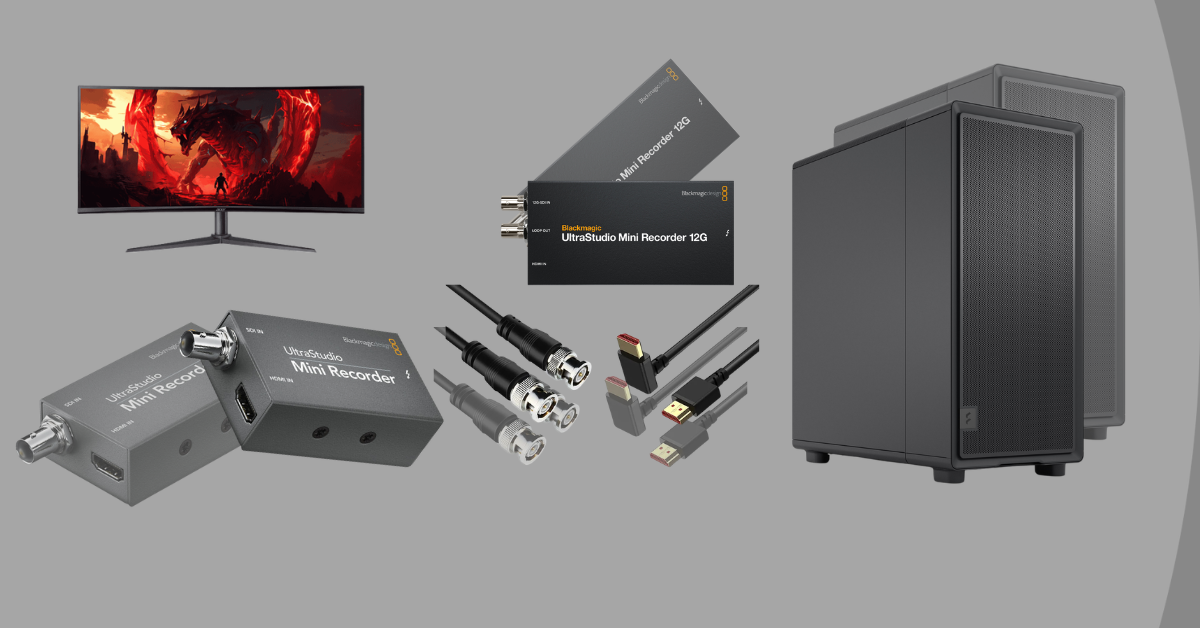
A fast editing PC can process high-resolution footage, but it does not automatically provide the professional connections used throughout broadcast, film and studio production. Video I/O hardware adds dedicated inputs and outputs for signals such as SDI and HDMI, allowing the workstation to capture live sources, ingest material from external equipment or send a clean video feed to a reference monitor.
The right device depends on what you actually need to do. An editor who only wants a calibrated external display may need a playback-only interface. A studio transferring camera feeds requires capture. A colourist may need 10-bit or 12-bit output, HDR metadata and reference sync. A multicamera or live-production system can require several simultaneous channels.
This guide separates those requirements so you can choose the correct interface instead of paying for inputs, formats or channel counts your workflow will never use.
Quick Answer
For straightforward HD capture or monitoring, a compact SDI/HDMI interface is enough. For internal 4K desktop systems, a PCIe card such as a DeckLink Mini Recorder 4K or Mini Monitor 4K is a practical route when 2160p30 is sufficient. For full 4K60 capture and playback, choose a 12G-SDI capable device such as UltraStudio 4K Mini. For high-end 8K, high-frame-rate or HDR finishing, a card such as DeckLink 8K Pro G2 moves into a much more capable professional class. Always match the exact resolution, frame rate, bit depth and connection type before buying.
What Does Professional Video I/O Do?
A graphics card is designed primarily to drive computer displays. Professional video I/O hardware is designed to receive or output defined video standards with the formats, timing and connection types used by cameras, broadcast equipment and reference displays.
Capture
Bring a live HDMI or SDI signal from a camera, deck, switcher or other source into the editing or streaming application.
Playback
Send a clean video signal from the NLE or grading software to a television, projector or professional video monitor.
Professional Connectivity
Add BNC-based SDI connections that are common in broadcast, studio, live production and higher-end post-production environments.
Colour-Critical Output
Use supported 10-bit or 12-bit video paths, HDR formats and professional signal standards when the display chain must be more controlled.
Reference and Timing
Higher-end interfaces can support reference, timecode or sync features for facilities where multiple devices need to remain timed together.
Multiple Channels
Multichannel cards can capture or output several feeds at once for live production, replay, monitoring, ingest and broadcast workflows.
Capture Card or Monitoring Card?
The phrase “capture card” is often used for every video interface, but professional products can be capture-only, playback-only or fully bidirectional.
Capture / Ingest
Camera, deck, switcher or live feed → workstation
Choose capture hardware when the computer must record an external video signal. This is useful for studio cameras, tape or deck ingest, live events, webinars, streaming and recording an output from another production system.
- HDMI or SDI input is the key requirement
- Check resolution and frame rate of the source
- Confirm audio is embedded or captured separately
- Storage must sustain the chosen recording format
Monitoring / Playback
Editing or grading software → reference display
Choose a playback or monitoring interface when you want the NLE to output a clean video signal independently of the desktop UI. This is especially useful for grading, client displays, broadcast monitoring and checking a proper video signal.
- Output-only hardware can be simpler and cheaper
- Useful for colour-critical monitoring
- Match SDI or HDMI to the reference display
- Check 10-bit, HDR and frame-rate support
SDI or HDMI for Professional Video?
Both can carry high-quality digital video, but they are designed for different environments. HDMI is common on cameras, televisions and creator equipment; SDI is common in professional production because BNC connectors and long cable runs suit studios, facilities and live environments.
| Feature | HDMI | SDI | Best Fit |
|---|---|---|---|
| Typical equipment | Cameras, TVs, consumer/prosumer monitors | Broadcast cameras, decks, routers, professional monitors | Match the equipment already in the workflow |
| Cable connection | Compact friction-fit connector | Locking BNC connector | SDI is preferable where connections must remain secure |
| Long cable runs | More dependent on cable type, resolution and active solutions | Designed for professional coax workflows over longer practical distances | SDI for control rooms, studios and sets |
| Embedded audio | Yes | Yes | Both can simplify audio routing |
| Professional routing | Less common | Widely used with routers, patching and broadcast infrastructure | SDI for larger facilities |
| Cost and convenience | Usually easier for small creator setups | Professional cabling and equipment can cost more | HDMI for simple desks and creator studios |
PCIe Card or External Video I/O?
PCIe cards install directly in the workstation and are ideal for permanent desktop systems. They keep the desk clear, can provide very high bandwidth and are available in everything from simple single-channel monitoring cards to advanced 8K and multichannel interfaces.
External interfaces connect through Thunderbolt, USB4 or another supported high-speed host connection. They are easier to move between compatible computers and can be a better fit for laptops, on-set systems or studios that want accessible front-panel connections.
- Choose PCIe for a fixed tower workstation, maximum integration and advanced internal expansion.
- Choose external I/O for portability, easy access and use with compatible laptops or compact PCs.
- Check the real host standard. A USB-C shaped socket does not automatically provide Thunderbolt or USB4 bandwidth.
- For PCIe cards, confirm the physical slot, electrical lane width, GPU clearance and motherboard lane sharing before ordering.
Which Video I/O Device Fits Which Level?
The products below show how current professional interfaces scale from simple HD capture through 4K monitoring and full 8K finishing. They are examples of capability levels rather than a rule that every workflow needs the most expensive model.
| Device | Connection to PC | Main Video I/O | Maximum Practical Class | Best Fit |
|---|---|---|---|---|
| UltraStudio Express Recorder 3G | USB4 / Thunderbolt 4 | 3G-SDI + HDMI capture | Up to 1080p60 | Portable HD Capture |
| UltraStudio Express Monitor 3G | USB4 / Thunderbolt 4 | 3G-SDI + HDMI playback | Up to 1080p60 | Portable HD Monitoring |
| DeckLink Mini Recorder 4K | PCIe | 6G-SDI + HDMI 2.0a capture | Up to 2160p30 | Desktop 4K Capture |
| DeckLink Mini Monitor 4K | PCIe | 6G-SDI + HDMI 2.0a playback | Up to 2160p30 | Desktop 4K Monitoring |
| UltraStudio 4K Mini | Thunderbolt 3 | 12G-SDI + HDMI capture/playback | Up to 4K DCI / UHD 60p class | Professional 4K I/O |
| AJA Io X3 | Thunderbolt 3 | 4 x 3G-SDI + HDMI I/O | Up to 2K / HD 60p | Multi-Channel HD / HDR |
| DeckLink Duo 2 | PCIe | 4 independent 3G-SDI channels | Up to 1080p60 per channel | Multi-Channel SDI |
| DeckLink 8K Pro G2 | PCIe | 4 x bi-directional 12G-SDI + HDMI 2.1 | 8K up to 60p; high-frame-rate 4K workflows | High-End 8K / HDR |
Which I/O Setup Fits Your Workflow?
The most useful way to choose video I/O is to start with the source, the display and the software you use every day.
HD Camera Capture
Simple HDMI or 3G-SDI input
For webinars, studio cameras, demonstrations and HD live production, a compact external recorder can be enough. Prioritise reliable 1080p60 support, embedded audio and direct compatibility with your streaming or capture software.
4K Camera and Deck Ingest
PCIe or Thunderbolt 4K capture
For 4K ingest, match the interface to the exact output of the camera or deck. A 2160p30 workflow can use less demanding hardware than 2160p50 or 2160p60, which normally pushes you into 12G-SDI or an equivalent higher-bandwidth solution.
Reference Monitoring
Clean 10-bit/HDR-capable output
Colourists should focus on playback quality rather than capture inputs they may never use. Choose a clean video output that supports the target format, bit depth, colour standard and HDR workflow, then connect it to a properly calibrated reference display.
Multichannel SDI
Several simultaneous video paths
Live production, replay, broadcast ingest and multi-camera monitoring can need several channels at once. In these cases channel count, reference sync, audio routing and driver/software compatibility can matter more than maximum single-channel resolution.
Bit Depth, Chroma, HDR, Frame Rate and Sync
Do not choose an interface from resolution alone. “4K” can describe many different signals with very different bandwidth and monitoring requirements.
Bit Depth
10-bit output is important in many grading and HDR workflows because it provides finer tonal precision than an 8-bit path. High-end devices can also support 12-bit modes for selected formats.
Chroma Sampling
Video interfaces may support YUV 4:2:2 or RGB 4:4:4 depending on the device and format. Match this to the signal standard required by the application and display chain.
Frame Rate
2160p30 and 2160p60 are not equivalent requirements. Higher frame rates need more interface bandwidth and may move the workflow from 6G-SDI to 12G-SDI class hardware.
HDR
For HDR monitoring, check the supported transfer functions, metadata behaviour, display compatibility and whether the full signal path preserves the required colour information.
Reference Sync
Black burst, tri-level sync, genlock and related timing features matter in larger facilities where cameras, switchers, decks and playback systems must operate on a common reference.
Embedded Audio
SDI and HDMI can carry audio with video. Confirm channel count, monitoring needs and whether separate balanced or digital audio connections are required.
How Video I/O Fits a Cortex Studio PC
Cortex Studio systems provide the CPU, GPU, memory and NVMe performance required for editing and grading. Adding professional I/O is a separate compatibility decision because capture cards also need the correct physical slot, PCIe lanes, cable clearance, host ports and software support.
| Workflow Level | Suitable Cortex Class | I/O Direction | Typical I/O Level | Important Check |
|---|---|---|---|---|
| HD creator / streaming | Cortex Studio / Studio X | Capture | HD HDMI or 3G-SDI external input | USB4/Thunderbolt support if using an external device |
| Professional 4K editing | Cortex Studio Pro / Pro X | Capture and/or monitoring | PCIe 4K card or external 4K I/O | Exact 2160 frame rate and available slot |
| 4K grading and finishing | Cortex Studio Ultra / Ultra X | Primarily monitoring | 12G-SDI / HDMI 4K professional output | 10-bit/HDR path and calibrated display |
| 8K, HFR or advanced finishing | Cortex Studio Ultimate / Ultimate X | Capture and playback | High-bandwidth 8K-class PCIe I/O | PCIe lane allocation, storage throughput and full format support |
Check Your Editing, Grading or Streaming Software
Professional I/O devices depend on drivers and application integration. Blackmagic Desktop Video hardware is designed to work with applications such as DaVinci Resolve, Adobe Premiere Pro and Avid Media Composer, while AJA supports major NLE, streaming and broadcast applications through its desktop software package. Always verify the exact operating system and application version before committing to hardware.
Premiere Pro / Resolve / Avid
Capture, playback and reference monitoring
These applications can use professional I/O for source capture and clean video output. Resolve users may especially value dedicated output to a grading monitor rather than judging colour only through the computer desktop.
OBS / vMix / Wirecast
Live inputs and multichannel workflows
Streaming applications can use compatible capture devices as live video sources. Multichannel products become useful when several cameras or feeds need to be available at the same time.
Eight Checks for Choosing Video I/O
Answer these questions before comparing product names. They determine the class of hardware you actually need.
Capture, Output or Both?
Decide whether signals need to enter the workstation, leave it, or travel in both directions.
SDI or HDMI?
Match the connector to your cameras, decks, switchers, router and reference display.
Exact Resolution and Frame Rate
Write down 1080p60, 2160p30, 2160p60 or 8K rather than simply saying HD, 4K or 8K.
Bit Depth and HDR
Confirm 10-bit, 12-bit, HDR and colour-standard requirements for the real delivery workflow.
Channel Count
Single-camera editing needs very different hardware from a four-camera live or ingest system.
Internal or External?
Check PCIe slots and lanes for internal cards, or Thunderbolt/USB4 support for external interfaces.
Software and Driver Support
Verify the current operating system, NLE, grading software or streaming application.
Storage Throughput
High-quality uncompressed or lightly compressed capture can produce very high data rates, so storage must sustain the recording format.
Build a Video Editing Workstation Around Your Real Signal Chain
Start with the cameras, displays and software you already use, then choose a Cortex Studio workstation with the processing, storage and expansion headroom required for professional capture, playback and monitoring.
Frequently Asked Questions
Do I need a capture card for normal video editing?
No. If footage is already stored as files on SSDs or memory cards, it can be imported directly. A capture device is needed when you must record a live HDMI or SDI signal, ingest from external video equipment or add professional monitoring output.
Do I need a capture card for colour grading?
You may not need capture input, but a dedicated playback interface can be valuable because it provides a clean video path from grading software to a reference display. The correct choice depends on the required bit depth, HDR format, resolution and monitor connections.
Is SDI better than HDMI?
Not automatically in image quality. SDI is preferred in many professional environments because it uses locking BNC connectors, integrates well with broadcast routing and is practical for longer studio cable runs. HDMI is convenient and widely available on cameras and displays.
What is 12G-SDI?
12G-SDI is a high-bandwidth SDI standard used for formats such as Ultra HD and 4K at higher frame rates over a single supported BNC connection. It is common on professional 4K capture and monitoring interfaces.
Can a 6G-SDI 4K card handle 4K60?
Do not assume it can. Some 6G-SDI interfaces are limited to 2160p30 class formats, while 2160p50 and 2160p60 often require 12G-SDI or another higher-bandwidth configuration. Check the exact supported format table.
What is the difference between DeckLink and UltraStudio?
DeckLink products are generally internal PCIe capture and playback cards. UltraStudio products are external interfaces designed around high-speed connections such as Thunderbolt or USB4, depending on the model. Both families include different resolution and I/O levels.
Can I use a capture card with OBS?
Yes, provided the specific device and driver are compatible with OBS and the operating system. For live work, also confirm the number of simultaneous inputs, audio routing and supported source formats.
Does an 8K workstation automatically support an 8K capture card?
No. CPU and GPU performance are only part of the requirement. An internal 8K card also needs an appropriate PCIe slot and lane allocation, enough physical clearance, suitable drivers and storage capable of sustaining the chosen capture format.
Is a normal GPU HDMI output enough for a reference monitor?
It can be useful for general viewing, but professional grading workflows often use dedicated video output hardware so the reference display receives a controlled clean video signal from the editing or grading application rather than another desktop display feed.
Do capture cards record directly to their own storage?
Most PCIe and desktop I/O devices send the signal to the workstation, where compatible software records it to system storage. Some dedicated recorders work differently, so check the product type before assuming where files are written.
Final Verdict
For many editors, video I/O is not about “more performance” but about connecting the workstation correctly to the rest of the production chain. If you only need file-based editing, you may not need a capture card at all. If you need a calibrated client or grading display, a playback-only interface can be the smartest purchase. If cameras, decks or live feeds must enter the PC, choose capture hardware that exactly matches their signal.
For HD, compact external SDI/HDMI devices provide a straightforward route. For 4K desktop work, PCIe recorder or monitor cards can be efficient when their frame-rate limits suit the project. Full 4K60, HDR finishing and 8K workflows require higher-bandwidth 12G-SDI or equivalent professional interfaces, with the DeckLink 8K Pro G2 representing the high end of current PCIe capture and playback capability.
Before ordering, confirm the signal standard, bit depth, frame rate, channel count, software support and physical connectivity. A correctly matched I/O device is far more valuable than an oversized card whose extra channels and formats never enter your workflow.


